
This article will describe how to build a skills framework and use skills to track learning outcomes.
You’ll learn:
What are skills?
How to build a skills framework
How to apply skills to a rubric
How to view skills data on the results and data dashboard
What are skills?
In Peerceptiv, we recommend attaching skills to your rubrics in order to track participant learning outcomes and skills growth over time. Skills can be added to rubric rating prompts and serve to organize and aggregate learning data on the results pages and the data dashboards.
You can choose to apply a skill to multiple rating prompts across different assignments and courses and this will allow you to track student performance across all of those activities over time with a consistent focus on skills. You can also choose to apply skills in a one-to-one correspondence with particular rating prompts to gain a picture of learner performance on those specific rating criteria.
Using skills will streamline your data collection and review process, allowing you to utilize the Peerceptiv data dashboards and providing a cohesive picture of how learners are meeting learning objectives and growing over time.
How to Build a Skills Framework
In order to put skills on your rubric, you must first create a skills framework to organize the skills. You may want to have a different skills framework for each of the different courses, topics, or cohorts you facilitate, or you can have one cohesive skills framework which serves an entire program or department.
First, click on your profile name and click Manage Rubrics, or go to your course dashboard (click the Peerceptiv logo on the upper left) and then click Rubrics.
You’ll see a list of your Rubric Templates. Click the tab on the right titled “Skills Frameworks.”
Click + New Framework
Click the box titled “New Skill Framework” to enter a new title. To add skills to your framework you can either choose to:
- Import from Library If you have already created skills or if your institution has shared skills, import them into your framework from your skills library.
- Add Manually If you already know what your desired skills and learning objectives are and they are new skills that don’t yet exist in your library, you can create the skills manually.
- Generate Skills If you would like some assistance from the Skills Framework AI Builder in determining what skills your training or program should be measuring. Use this option if you know you need to evaluate the learning objectives for Biology 101 or the skills a Customer Support Representative should have, but don’t yet know what those skills are. Note: This feature may not be available at your institution and should only be used if it complies with the data policies at your institution.
Import From Library
Click Import from Library, Open Full Skills Library, and either search for a specific skill or scroll down and select a skill to be added to your framework.
Add Manually
Click Add Manually. Enter a Skill Name and Description. Then click Add Skill.
Skills Framework AI Builder
This feature may not be available at your institution and should only be used if it complies with the data policies at your institution.
Use the drop down menu on the right to select your Learning Experience Type: Corporate or University. If Corporate, enter a Job Title, Years of Experience, Industry, and Describe the goals of the training. If University, enter a Discipline, Course, Topic, and Student Experience Level. Then click Generate Skills.
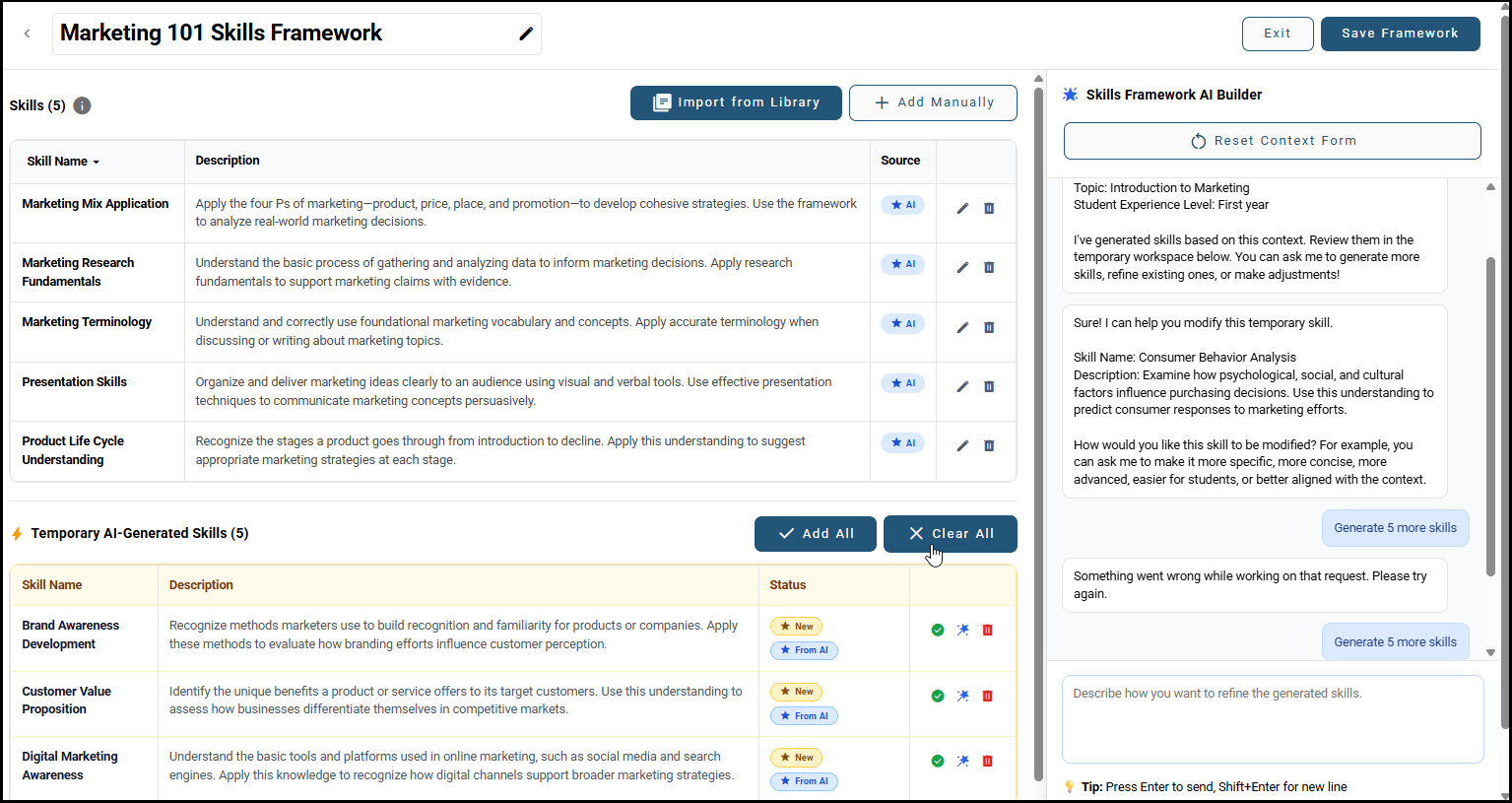
You will see a list of skills generated under “Temporary AI-Generated Skills.” You can choose to add all of these skills to your framework by clicking Add All. Each individual skill can also be added to the (non-temporary) framework by clicking the green checkmark next to the skill.
If you would like modifications, you can ask the AI chat bot in the window on the right to modify all of your skills, or you can click the magic wand icon next to each skill to request modifications to a specific skill. You’ll need to tell the chat bot how you would like the skill to be modified in the chat window (for example: make it longer, more detailed, etc.).
If you would like the AI builder to generate more skills, simply ask it to do so in the chat window and click Generate Skills.
Any skills added to the skills framework will appear in the permanent table at the top of the screen. Skills added to that table are now considered part of your framework and can no longer be modified by AI. To make modifications to those skills, you can do so manually by clicking the pencil icon.
Once you have finalized your Skills Framework, you may click Clear All to clear the skills from the temporary framework.
How to Apply Skills to a Rubric
Once you have created a skills framework, you can then add those skills to your rubric rating prompts. Click Add skill from framework.
Then, select a framework.
Click the skills you want to add. Click Done when you’re finished adding skills.
For more information about how to build a rubric, please see this article.
How to View Skills Data on the Results Page and the Data Dashboard
You can view skills data in every assignment in which you have skills on the rubric rating prompts. Go to the Results tab on the left side bar and then scroll down to the Individual Scores table. Click show Skills.
Your learner performance data will be displayed by skill and it is shown in percentages because skills data is aggregated across all rating prompts which are tied to that skill.
To view skills data on the data dashboard, click on the course name in the top navy bar and then click Data Dashboard.
From here, you can view overall skills data for the course or view individual skills data by clicking the Individual Overview tab.
For more information, please see the Data Dashboard article for Instructors or Administrators.
Comments
0 comments
Article is closed for comments.